
Indicator for TradingView
Your setups, marked on your TradingView chart
Describe the setups you trade in plain words. Wildflower marks every one on a chart, then gives you a script to add to TradingView. No coding.
Build it free. Only pay when you add it to TradingView.
Love it, or your money back
How it works
From your words to your chart in four steps
Describe it
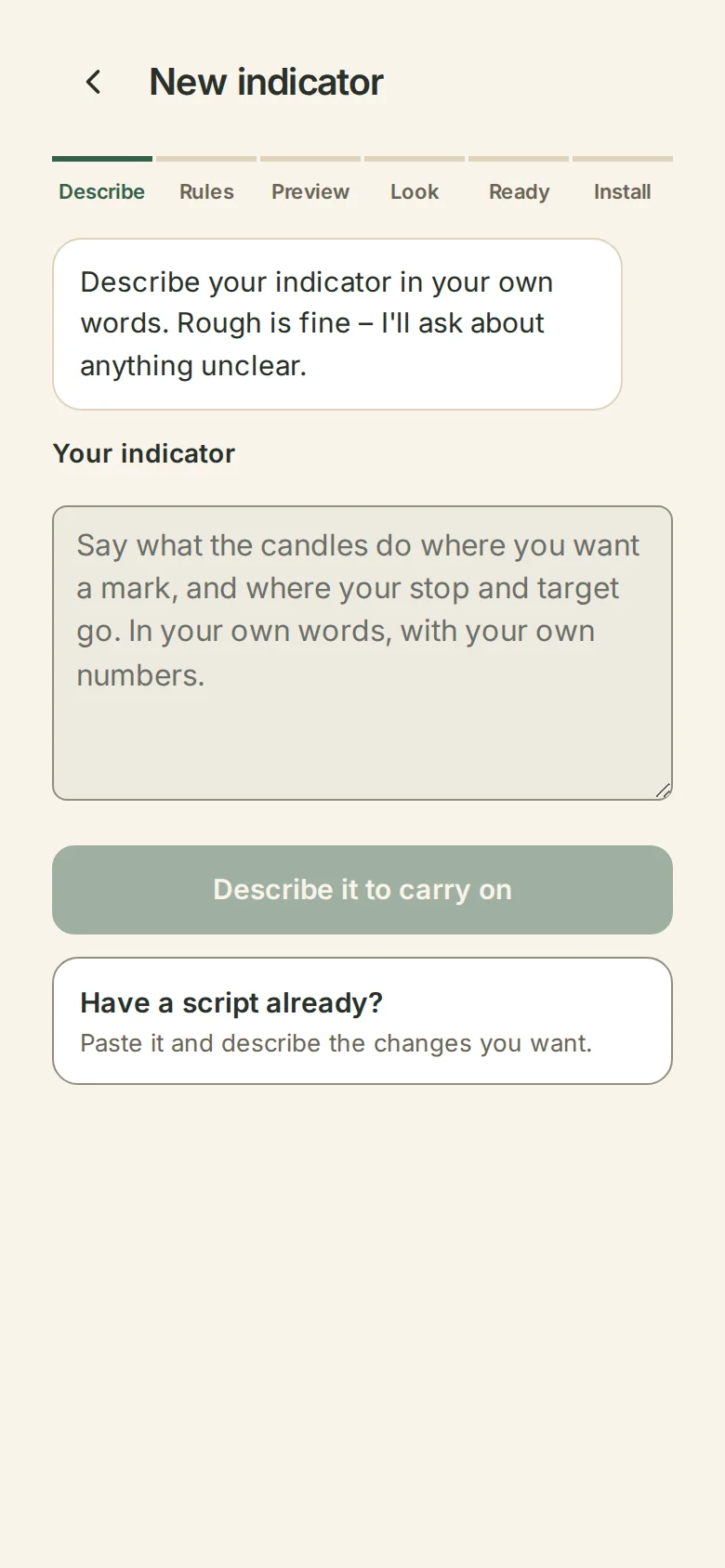
Type it the way you’d explain it to a friend. Already use a Pine Script indicator? Paste it in and say what to change.
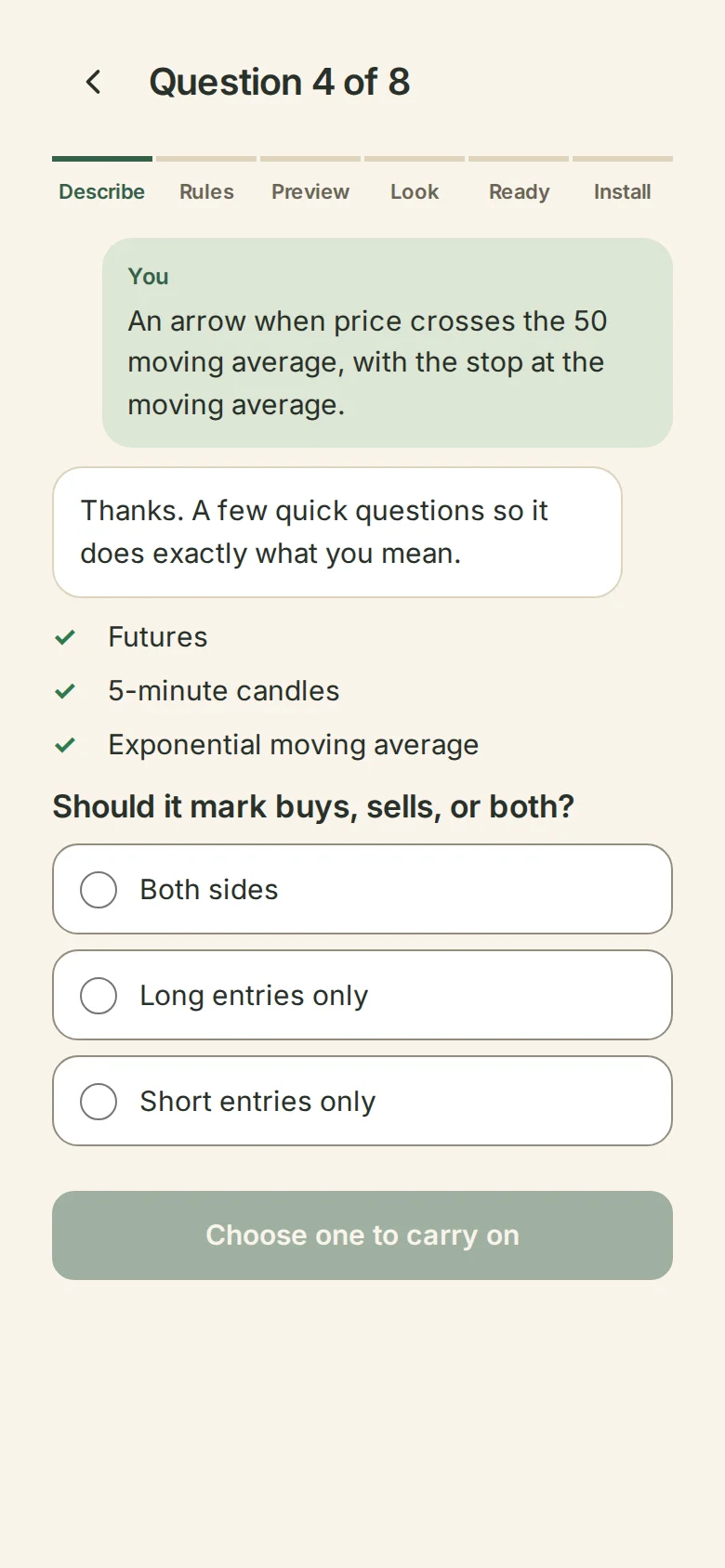
Answer a few questions
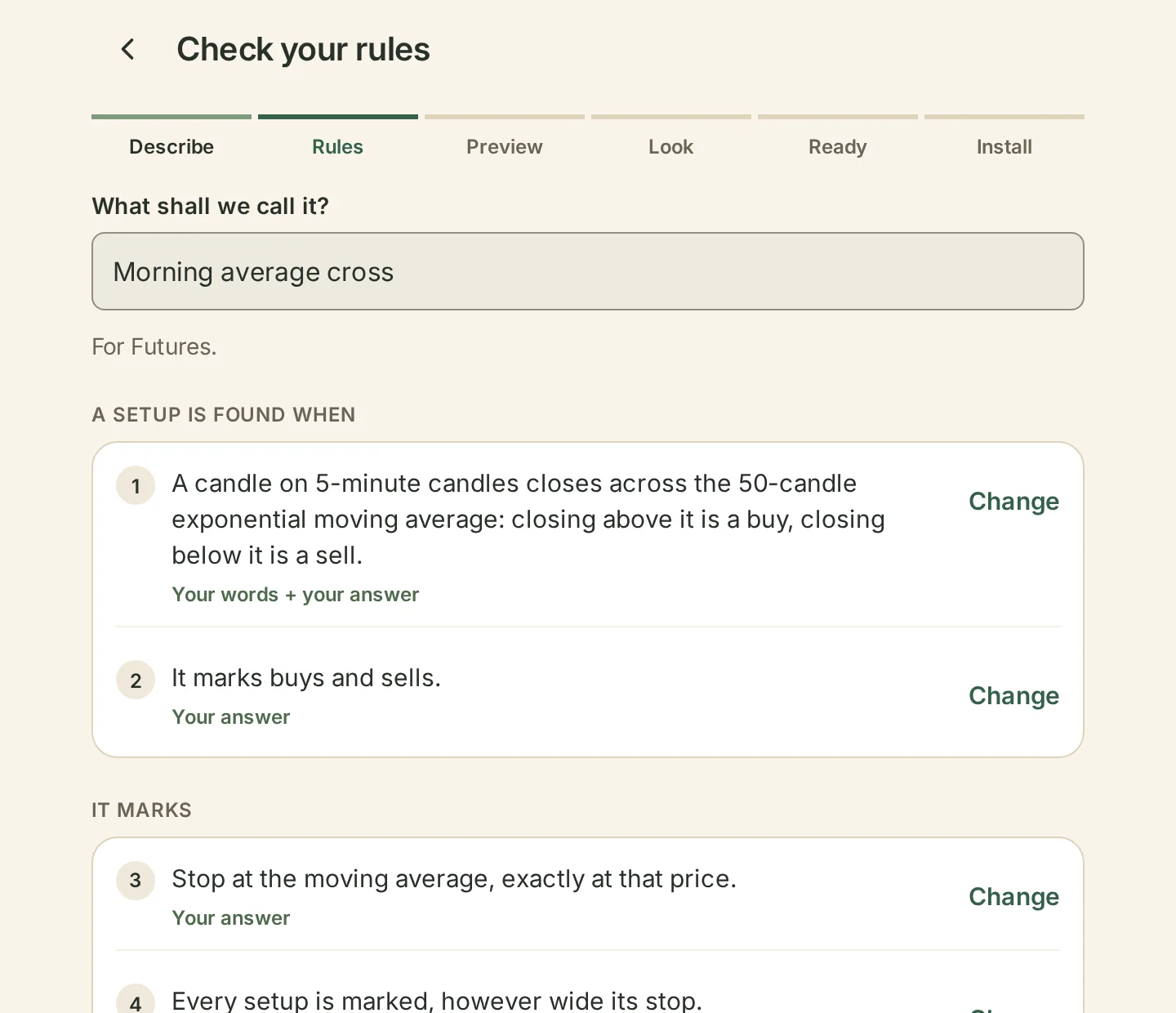
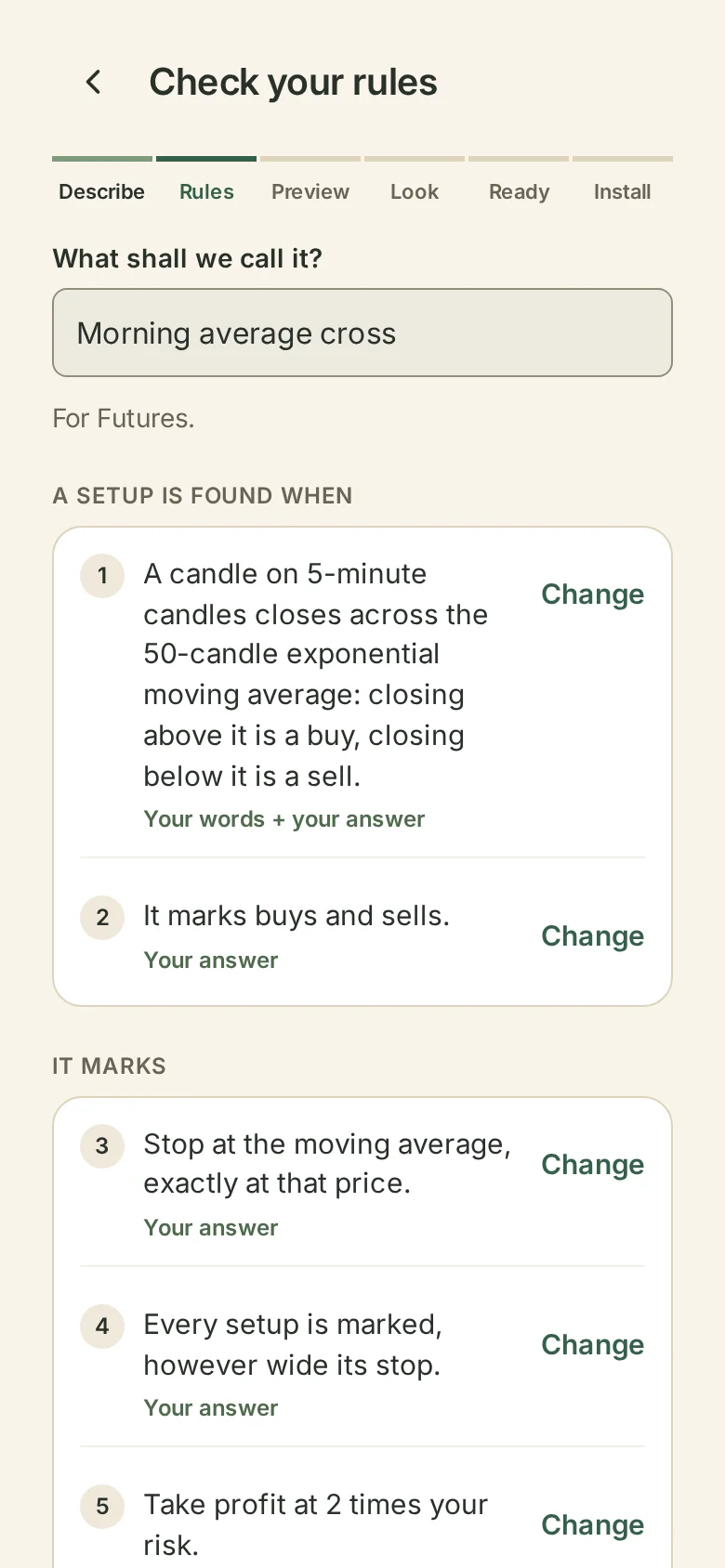
Wildflower asks until every rule is exact. You choose every number. It never fills one in for you.
See every setup
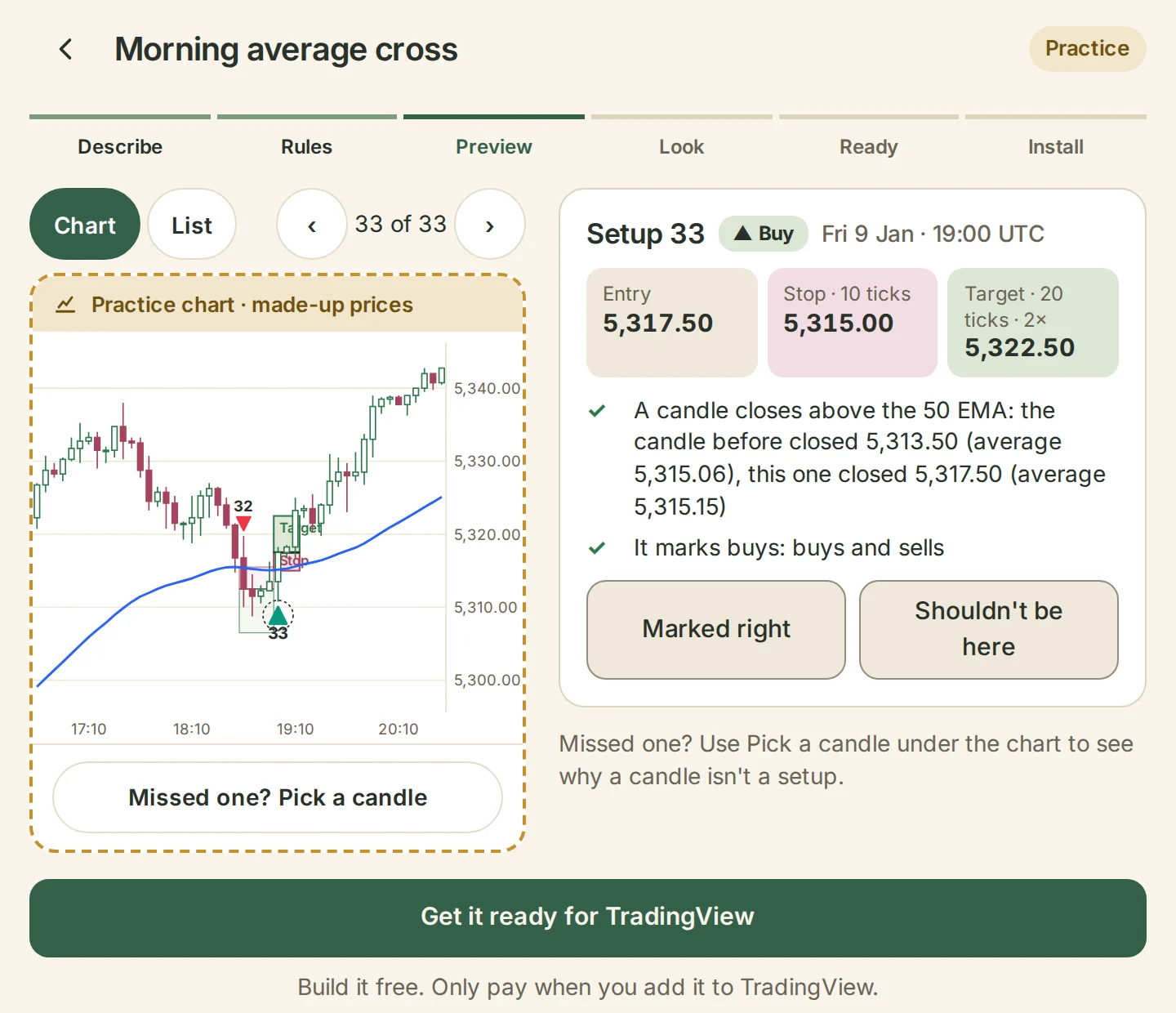
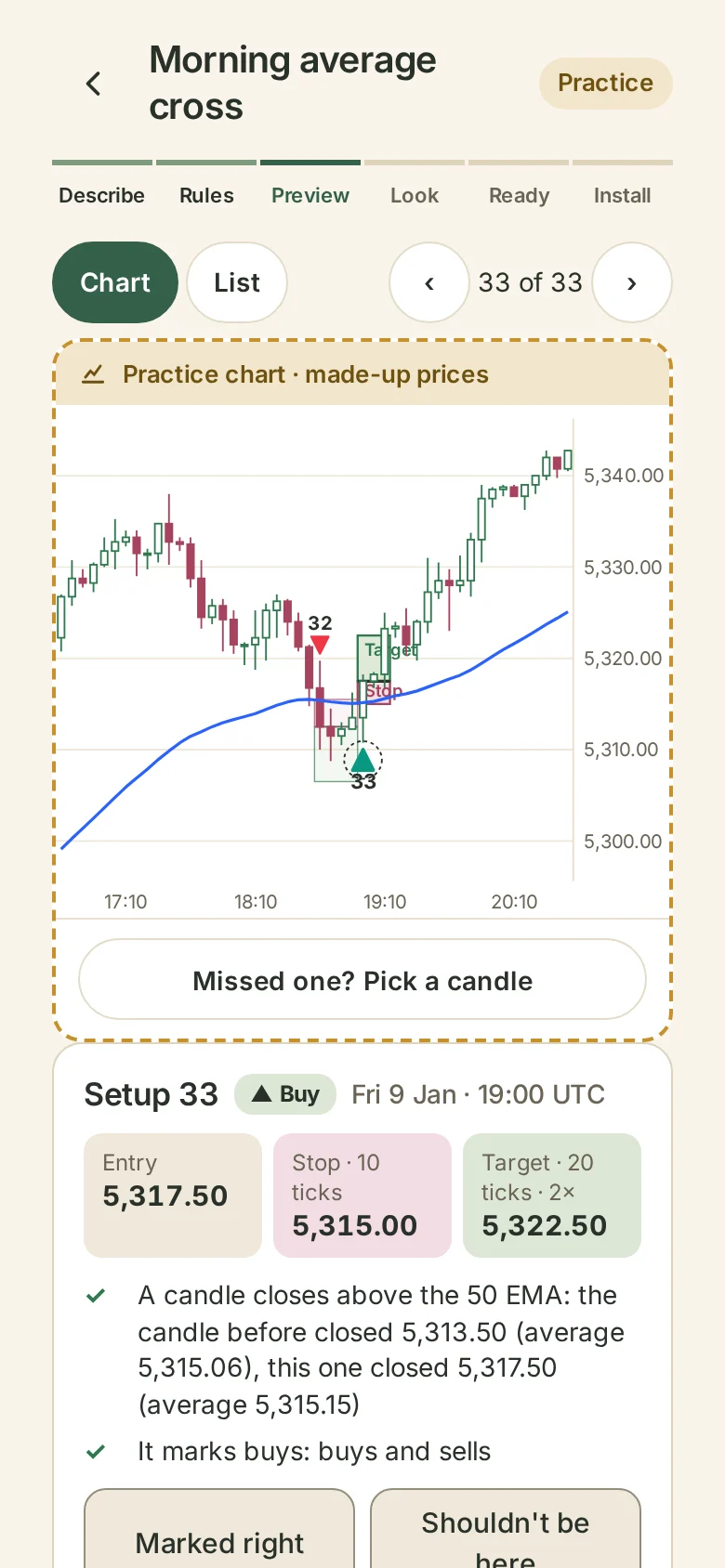
Each setup is marked with its entry, stop and target. Try it on the practice chart straight away, or open your own chart file.
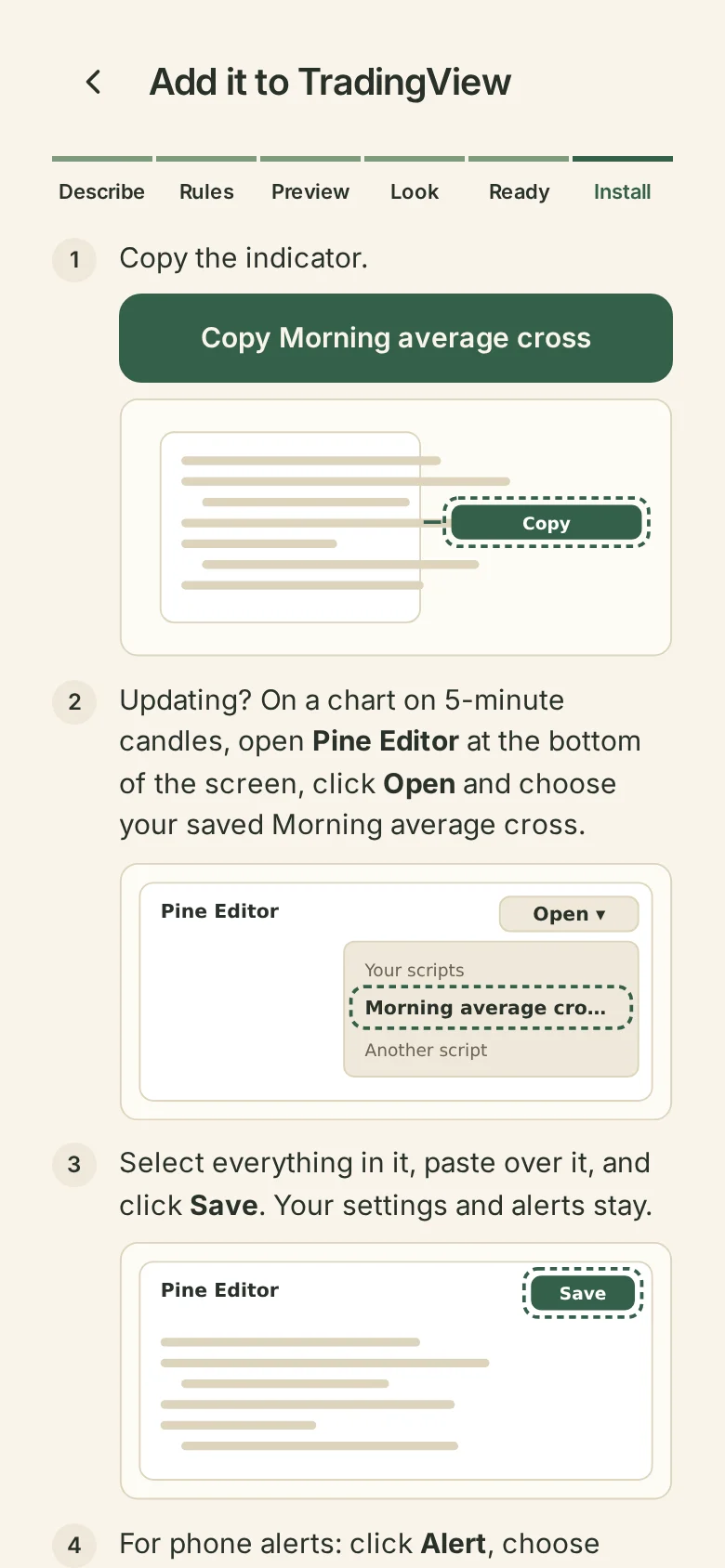
Add it to TradingView
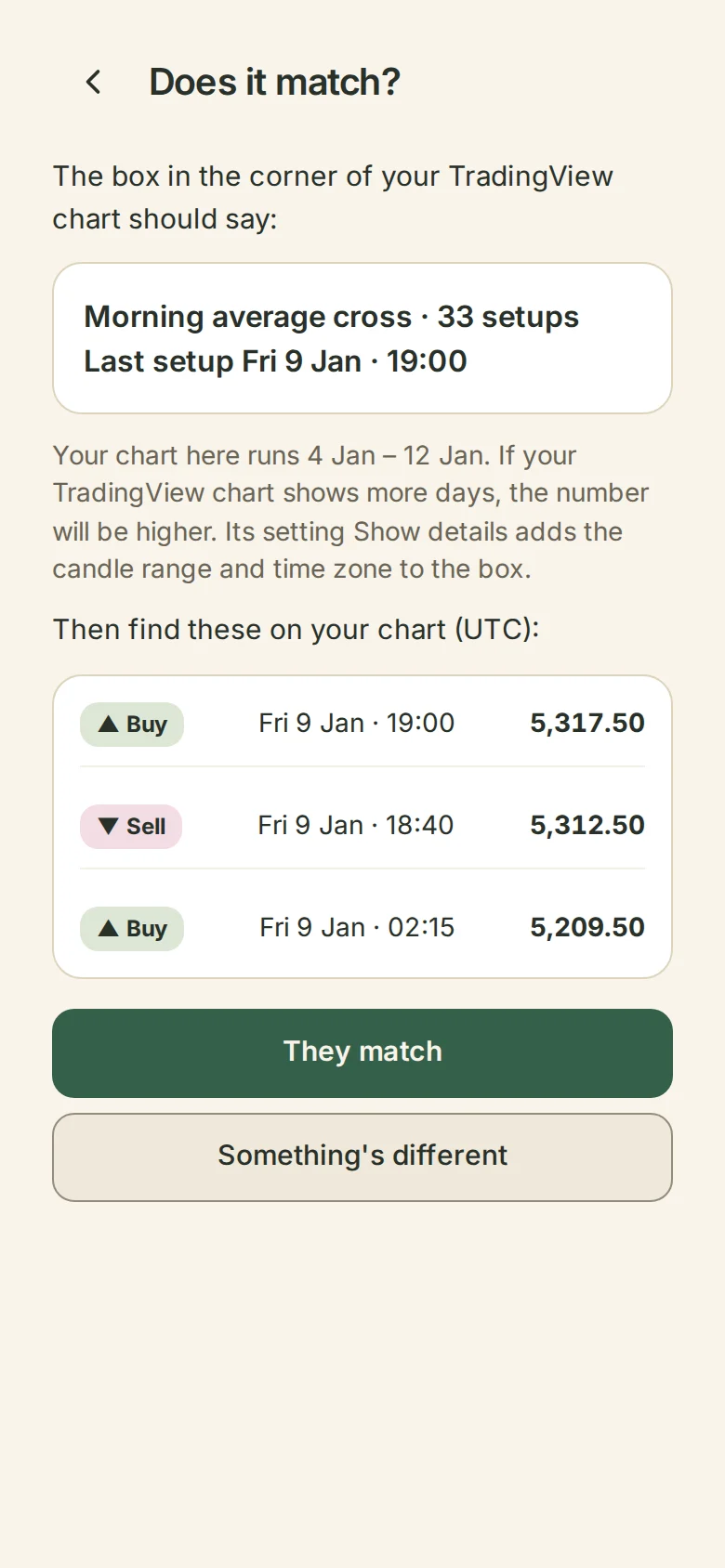
Follow the pictures to add it. Then check it matches what you saw.
What it can draw
Everything your rules call for
- Lines and levels
- Entry and exit markers
- Shaded zones, like gaps and ranges
- Labels
- Alerts when a setup appears
Pick any candle to see which rule wasn’t met there.
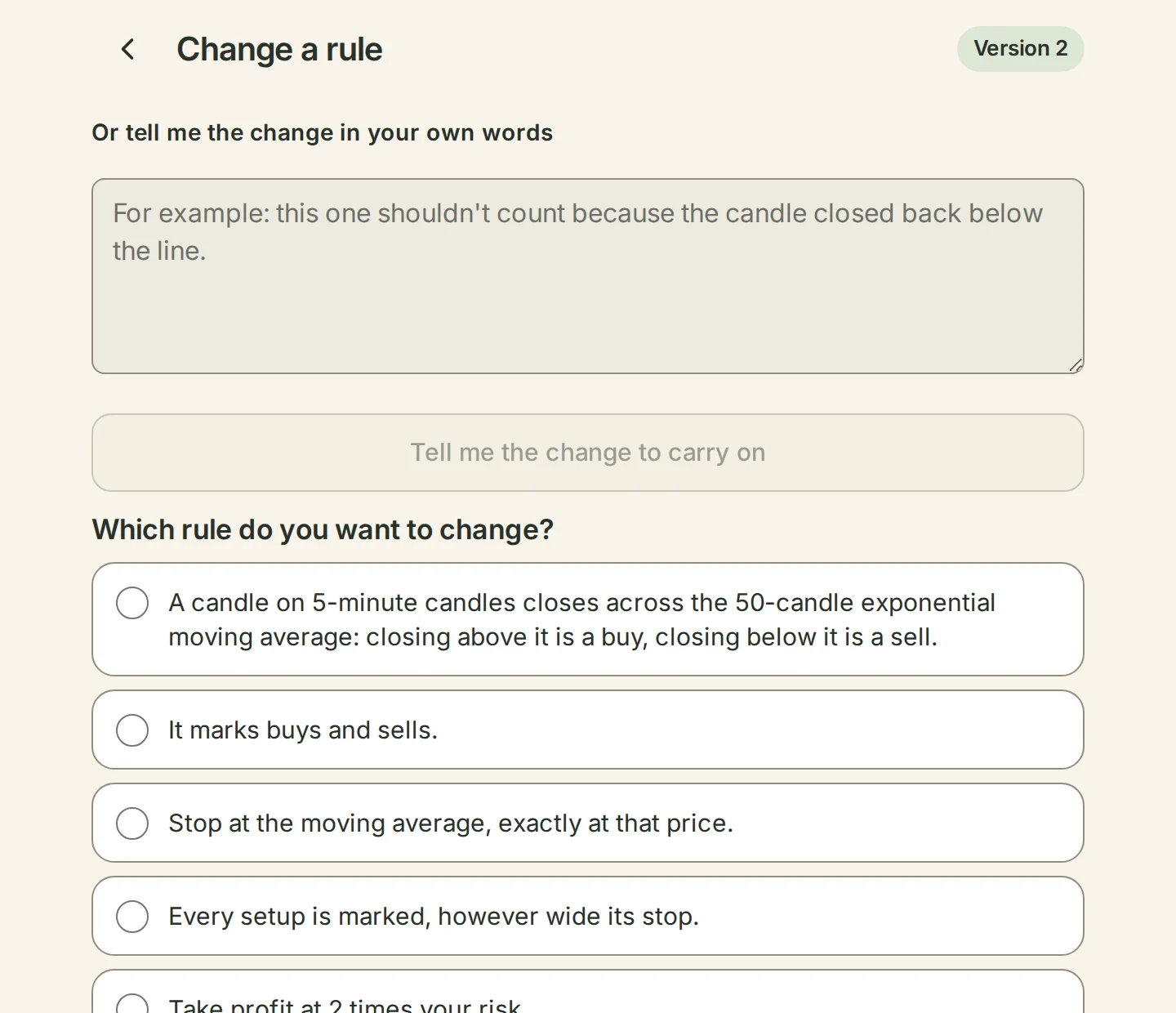
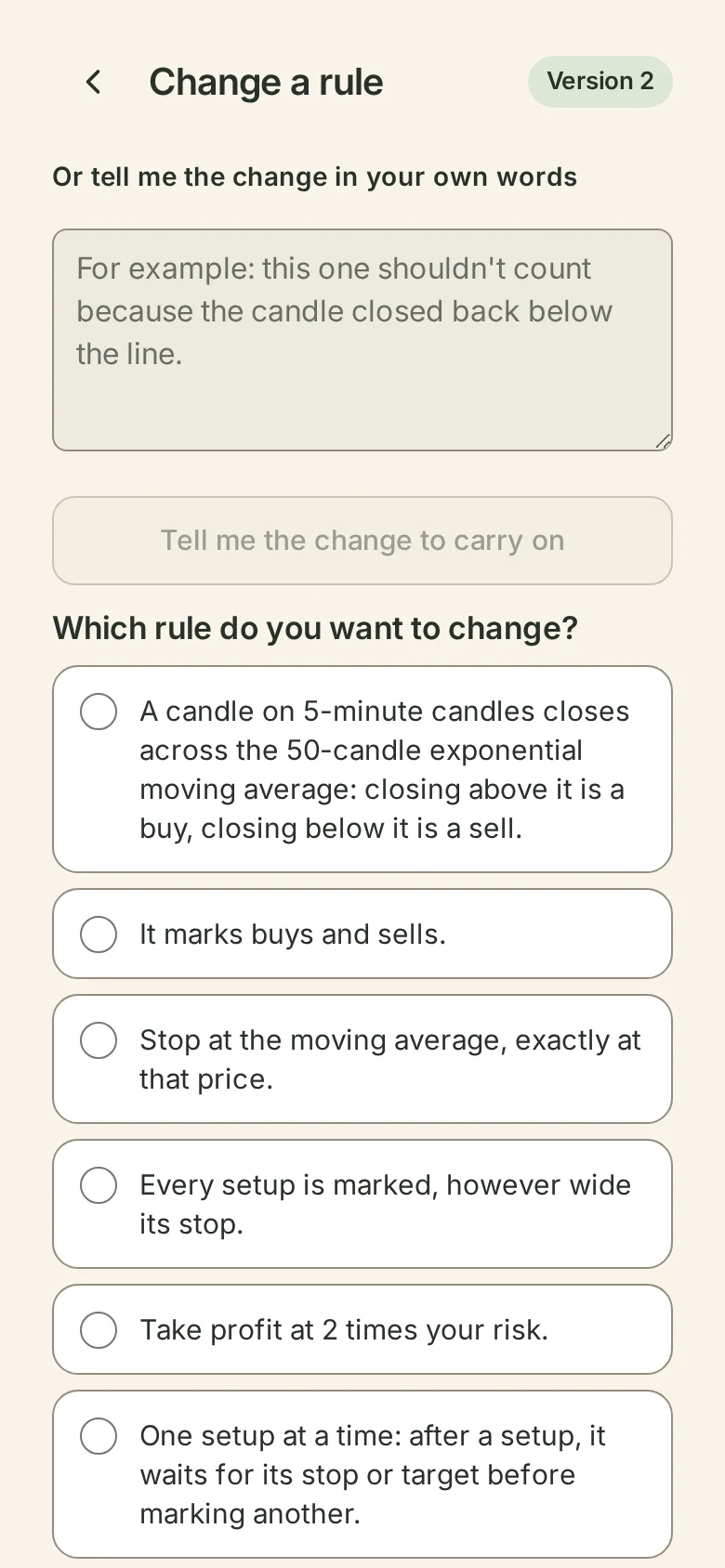
Change a rule
See exactly what changed
Change a number or a rule and Wildflower shows you every setup it added and removed, before and after. Keep the version you like. Your old one is saved.
Markets and platforms
Works with TradingView, MetaTrader 5, NinjaTrader 8, cTrader and Quantower.
Futures, forex and crypto.
Ready to test it? Press “Backtest this” to see every trade your indicator would have taken on past prices. See Backtest
Start free
Build it free. Only pay when you add it to TradingView.
Love it, or your money back
Common questions
Do I need to know how to code?
No. Describe it in plain words, or build it from blocks.
Can I bring an indicator I already use?
Yes. Paste your Pine Script and describe what to change.
Do I need a paid TradingView account?
No. A free TradingView account works. You add the script on a computer, because TradingView’s phone app can’t add indicators.
What if it doesn’t match what I saw?
The “Does it match?” step walks you through it, and the help centre shows you how to fix it.
What happens if I cancel?
Your script keeps working in TradingView. New builds and updates need a plan.
Which markets does it work on?
Futures, forex and crypto.
What is Pine Script?
TradingView’s own language for indicators. Wildflower writes it for you.
Does it work with MetaTrader 5?
Yes. Choose MetaTrader 5 on the last step and download the file. It marks the same setups as your preview. You add it on a computer, because MetaTrader 5’s phone app can’t add indicators.
Does it work with NinjaTrader?
Yes, NinjaTrader 8. Choose NinjaTrader on the last step and download the file. It’s checked for errors and matched to your preview, so it marks the same setups. NinjaTrader 8 runs on Windows, so you add it on a Windows computer.
Does it work with cTrader?
Yes. Choose cTrader on the last step and copy it into cTrader. It passes our checks, including a build with cTrader’s own tools, so it marks the same setups as your preview. You add it on a computer, because cTrader’s phone app can’t add indicators. Rules on 15-second candles don’t work there: cTrader’s shortest chart is one minute.
Does it work with Quantower?
Yes. Choose Quantower on the last step and copy it. It’s checked for errors and matched to your preview, so it marks the same setups. You add it on a Windows computer, with two free tools: Visual Studio Community and Quantower’s Quantower Algo add-on.