
Watch your Bot, and stop it fast
Wildflower Trading School · Lesson 7.11.5.2 · This exercise needs a Trade subscription

This is the second of three lessons with one goal: a go-live checklist, every check before a real account goes on, in order. Last time you wrote lines one to four, your limits. Today you write lines five to eight, and do each one in Wildflower.
1 of 14
What you'll learn
- Check the Bot page says Your computer Connected before any account goes on.
- Pick How trades are placed on the account. Auto places every trade that fits.
- Type your Tell me when lines in Bot settings and press Save. An empty box sends nothing.
- Find the On switch, Pause until and Stop everything before you need them.
- Stop everything closes every open position at market, on all of your accounts.
Exercise
- Choose Trade or Automate on Plans, and connect your broker in Connections, if you haven't.
- Open Bot and check it says Your computer: Connected.
- Open your Wildflower demo in Accounts and pick How trades are placed.
- Open Bot settings, type your Tell me when lines and press Save.
- Find the brakes on your demo's page: the On switch, Pause until and Stop everything. Press Stop everything, read it, and press Cancel.
- Help article Stop everything, Pause, and switching off
- Help article Ask me before each trade
- Help article Set up your computer
Quick check
1. Which brake closes every open position at market?
2. Sam's Tell me when says $150 for the day's loss. What happens when he reaches it?
3. The Bot page doesn't say Your computer: Connected. What does that mean?
0 of 3 answered.
Finished this lesson?
Tick it off and keep your place
Read the full notes
The Bot trades from your computer, so you check it's connected, pick how it places trades, and know how to stop it before real money goes on. In Wildflower, the Bot page says Your computer: Connected. The account's page has How trades are placed, the On switch, Stop everything, and Pause until. Bot settings has Tell me when, where you type the losing run and the day's loss that should send you a message.
What you're building. This is the second of three lessons with one goal: a go-live checklist, every check before a real account goes on, in order. Last lesson was lines 1 to 4, your limits. Today is lines 5 to 8. Next lesson is lines 9 to 11, and switching the real account on.
| My go-live checklist |
|---|
| 1. Risk per trade on the account: $ |
| 2. Daily loss limit on the account: $ (… full losses) |
| 3. Stop for the day after … losing trades in a row |
| 4. My firm's rules are on the account (prop accounts only) |
| 5. The Wildflower app is running, and the Bot page says Your computer: Connected |
| 6. How trades are placed: Auto, Ask me, or Ask me, then take it |
| 7. Tell me when: … losing trades in a row, and a day's loss of $… |
| 8. I've found Switch off, Pause and Stop everything |
| 9. The version that will run has its own backtest |
| 10. The demo ran that version for … weeks, and it says In line with its backtest |
| 11. If it says Worth a look, I will: … |
Why. The Bot trades from the Wildflower app on your computer. A computer that's asleep or offline places nothing and closes nothing; your stops and targets wait at your broker. More in Connection loss. A message at a line you chose reaches you before you'd notice it yourself, and in a bad moment you have seconds, so you find the brakes now.
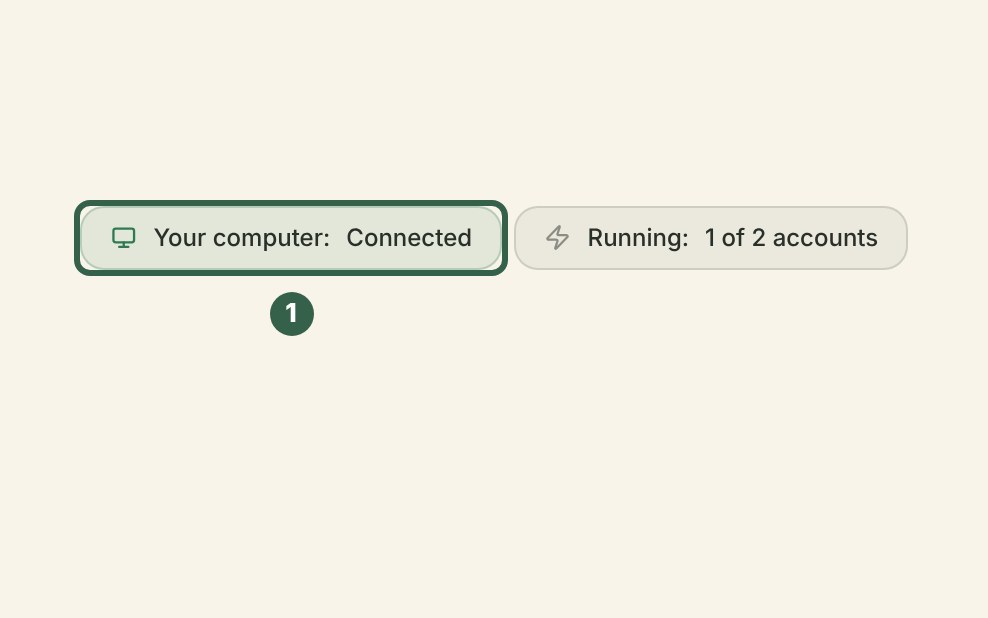
Your computer. Sam is made up, and so are his numbers. Connected means the Wildflower app is running and Wildflower can reach it. If it doesn't say that, see Set up the Wildflower app on your computer. Settings, Desktop app has the same check, under Is it connected?
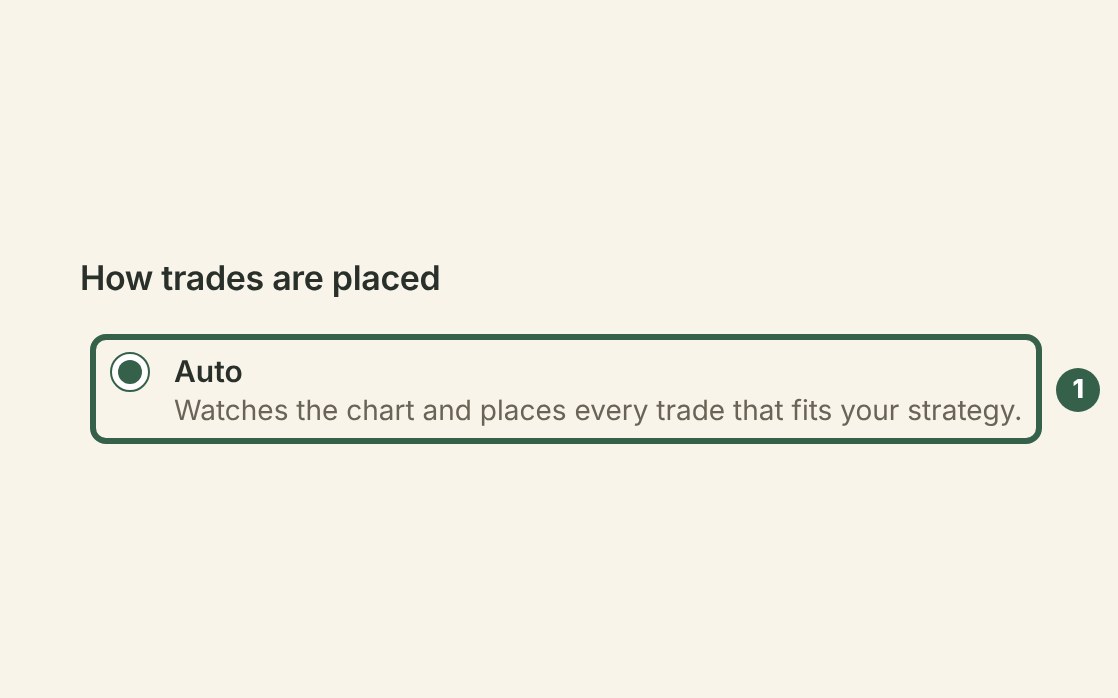
- Auto places every trade that fits your strategy.
- Ask me alerts you, and places nothing until you press Take it.
- Ask me, then take it alerts you the same way, and places the trade if you don't answer in time.
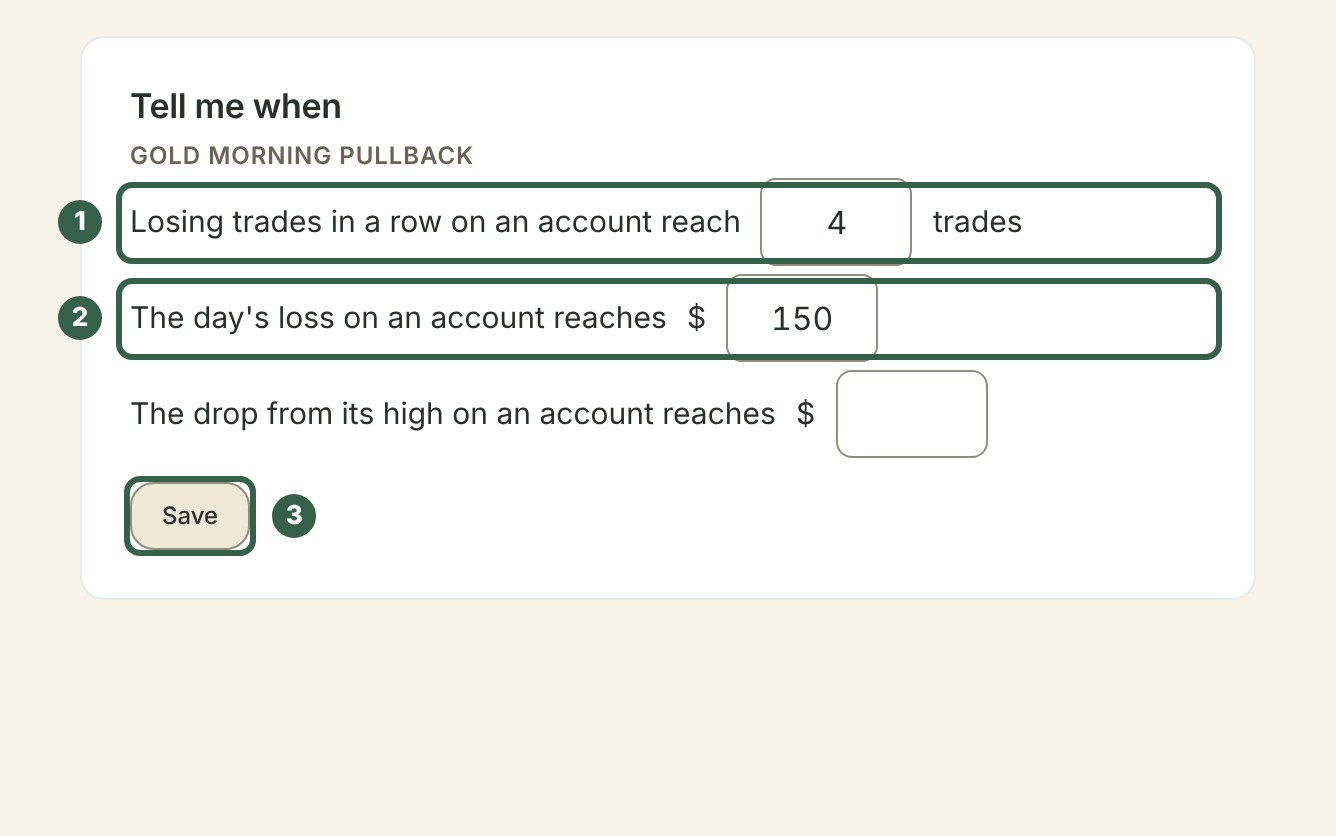
Tell me when. One group per strategy. Sam types 4 losing trades in a row and $150 for the day's loss, so he hears about his first full loss (about $165 with fees). An empty box sends nothing. A message only tells you: it never pauses or closes anything, and it comes within about three minutes of a trade closing. How long losing runs get is in Losing streaks happen.
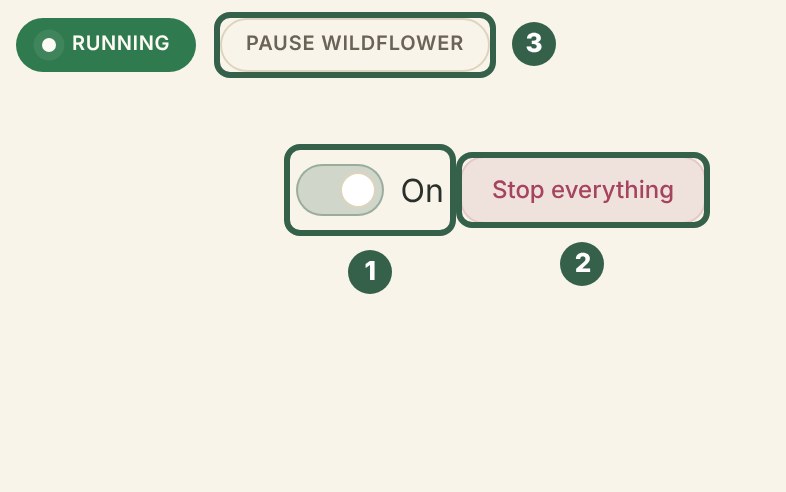
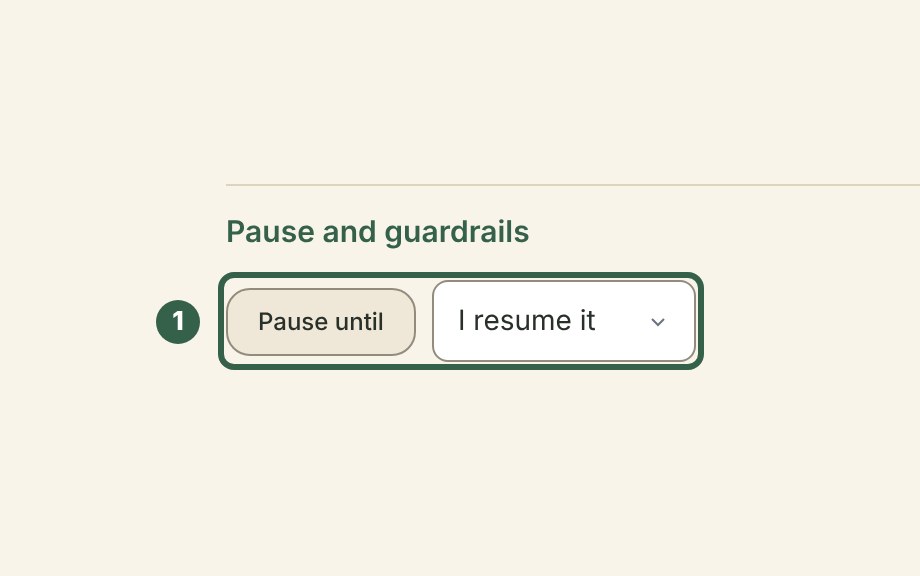
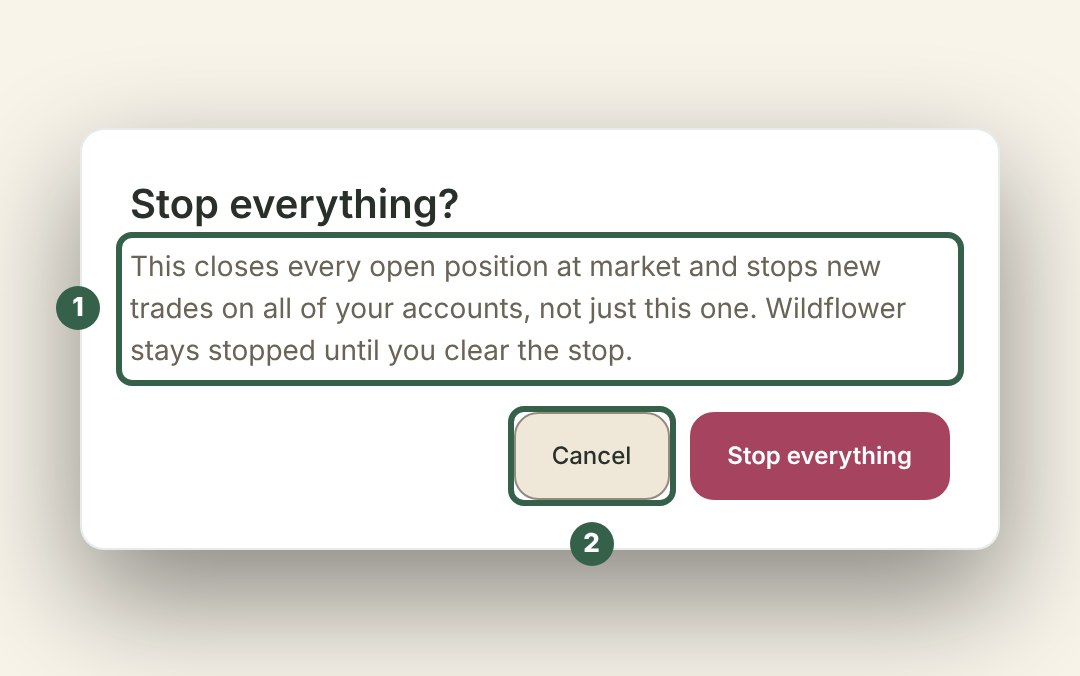
| Brake | Which accounts | An open trade |
|---|---|---|
| Switch off (the On switch) | This account | Stays, with its stop and target |
| Pause until, or Pause Wildflower | This account, or all | Stays, with its stop and target |
| Stop everything | Every account | Closed at market, until you clear the stop |
How traders set this up. We can't tell you which to choose. These are the common choices. How trades are placed: Auto from day one, Ask me for the first weeks then Auto, or Ask me, then take it. Tell me when: the day's loss a little under one full loss, a losing run shorter than the backtest's longest, or both. Watching: set times, messages only, or the account's page open on a second screen. More in Watching an automated strategy and Kill switches and limits.
The Bot on a broker's prices comes with the Trade subscription. No broker? The free demo on your practice chart runs in your browser, so there's no computer to check, no Stop everything and no Tell me when. Its card on Charts has Switch off.
Worked example
Made-up numbersSam's lines 5 to 8
Sam is made up. His Bot stops for the day after 2 losing trades or $320. A full loss is $160, about $165 with fees.
- Line 5: the Bot page says Your computer: Connected.
- Line 6: Auto, on the demo and later on the real account.
- Line 7: 4 losing trades in a row, which can only build over two or more days. The day's loss $150, so he hears after his first full loss.
- Line 8: he finds the On switch, Pause until, Pause Wildflower and Stop everything, and presses Cancel on Stop everything.
Lines 5 to 8 ticked, with Tell me when saved at 4 and $150.
Trading is risky. You can lose money. This lesson shows how Wildflower works. It isn't advice.